
This article is written for FME 2025.0 and older. FME 2025.1+ users
should migrate their Snowflake Database Connections that use Key Pair to the
new
Key Pair
authentication type introduced in FME 2025.1.
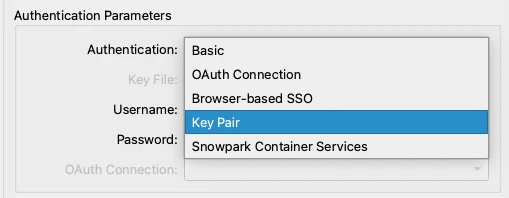
When creating new connections in 2025.1+ using the Key Pair
authentication type,
you do not need to set the JAVA_TOOL_OPTIONS environment variable as described
in this article.
When migrating existing connections from 2025.0 (and earlier)
to 2025.1+ that have key pair authentication configured in the Advanced JDBC
Connection:
- On Windows: the connection will work without setting JAVA_TOOL_OPTIONS
- On macOS and Linux:
There is still a requirement to set the JAVA_TOOL_OPTIONS environment variable to enable Bouncy Castle, as described in this article.
Introduction
When following Snowflake's key-pair instructions to create an encrypted private key with OpenSSL, FME cannot properly decrypt the private key and fails to connect to the database. If the private key was created with the -nocrypt flag, there are no issues using it in FME.
There are several requirements if you wish to use an encrypted private key to connect to the Snowflake Database using FME:
- Must use the Advanced Connection Parameters in the Snowflake Database Connection
- Add private_key_file and add the path to the p8 file.
- Add private_key_file_pwd and set the passphrase of the p8 file.
- It is necessary to add the
JAVA_TOOL_OPTIONSenvironment variable for all versions of FME. - Ensure FME is using at least version 3.19.1 or newer of the Snowflake driver (ex. snowflake-jdbc-3.19.1.jar)
- Upgrading from FME 2021.0 to 2024.0 requires updating the Snowflake driver.
- FME 2024.1 and newer do not require an update to the Snowflake driver.
Create Environment Variable
This is required for both FME Form and FME Flow (all core and engine nodes). Setting the JAVA_TOOL_OPTIONS enables Bouncy Castle to support the Snowflake driver in decrypting the private key file.
To set the JAVA_TOOL_OPTIONS, on Windows OS, open a command window ('run as administrator') and run this command:
setx JAVA_TOOL_OPTIONS -Dnet.snowflake.jdbc.enableBouncyCastle=true -mPlease restart FME Form/FME Flow when adding this new environment variable.
Update Snowflake Driver
If you need to update the Snowflake driver in FME, visit the Maven Repo for the Snowflake Driver and locate the desired version, for example, 3.19.1. Inside the Maven Repo folder, locate the file named snowflake-jdbc-3.19.1.jar, then click the link to download it (in most browsers).
FME Form
- Place the new driver (.jar) in the plugins folder of the FME Form installation. For example, C:/Program Files/FME/plugins.
- It is necessary to remove the old Snowflake driver (snowflake-jdbc-x.yy.x.jar)
FME Flow
- FME Flow: Place the new driver (.jar) in the plugins folder of the FME Flow installation. For example, C:/Program Files/FMEFlow/Server/fme/plugins. Do not use the system share.
- It is necessary to remove the old Snowflake driver (snowflake-jdbc-x.yy.x.jar)
- Restart the FME Flow Engine service (you do not need to restart all of FME Flow Services).
Test the Database Connection
Testing in FME Form
- Open FME Workbench with the Database Connection and test the connection. If you have not created the database connection, see the section In FME - Database Connection below.
- Review the log file. For FME 2025.0 and older, you should see this line in the log:
Picked up JAVA_TOOL_OPTIONS: -Dnet.snowflake.jdbc.enableBouncyCastle=trueand this will indicate the environment variable has been properly configured. In FME 2025.1 and newer, this line may not be present. - See the troubleshooting section below if you encounter errors.
Testing in FME Flow
- Using FME Workbench, publish a test workspace and database connection to FME Flow.
- Log in to the FME Flow Web UI and test the workspace containing the database connection.
- Review the Job Log for a successful connection.
- In FME Flow 2025.0 and older, the job log may not show the same log entry as seen in FME Form. i.e.
Picked up JAVA_TOOL_OPTIONS: -Dnet.snowflake.jdbc.enableBouncyCastle=true. - See the troubleshooting section below if you encounter errors.
Driver Requirements
Summary of Requirements
| Version | Tested | Env Var | Driver Update | Notes |
| 2021 | Yes | Yes | Yes | Tested with v3.19.1 |
| 2022 | Yes | Yes | Yes | Tested with v3.19.1 |
| 2023 | Yes | Yes | Yes | Tested with v3.19.1 |
| 2024.0 | Yes | Yes | Yes | Tested with v3.19.1 |
| 2024.1 | Yes | Yes | No | Comes with v3.19.0 |
| 2024.2 | Yes | Yes | No | |
| 2025.0 | Yes | Yes | No |
* Improvements coming for 2025.1
Caveats
- To use an encrypted private key in FME, you must set the passphrase when generating the private key file with OpenSSL. The passphrase is set to the value of private_key_file_pwd in the connection.
- Ensure OpenSSL v3.x is used to create the private and public keys
- You may wish to enable the Mask Connection String in the Database Connection when using the Advanced Connection Parameters.
FME Flow Considerations
- Ensure the path where the key file is stored is accessible by the Windows Services Log on As user. This could be LOCALSYSTEM or a domain service account.
- At this time (FME Flow 2025.0.0 and older), there is an issue referencing the FME Flow Published Parameters like $(SHAREDRESOURCE_DATA), so this cannot be used in the private_key_file connection property. Use a full path instead. i.e. c:\mysafe\private-key.p8.
- You may wish to tighten the security on the folder where the private key is stored.
- For Linux installations of FME Flow, be sure to set the permissions on the p8 file to read-only; otherwise, you'll receive errors when accessing the file.
- Consider enabling Mask Connection Details in the Database Connection to hide sensitive details printed to the log file.
- private_key_file_pwd is not printed out in the connection string in the FME Flow Job Log, regardless of the Mask Connection Details settings.
- The same environment variable,
JAVA_TOOL_OPTIONSwill work for FME Flow Engines. - It is recommended to upgrade the driver to 3.19.1 or higher. An issue was discovered with FME Flow 2024 using the 3.16.1 driver. Using the newer driver resolved the issue. A root cause could not be determined. Therefore, we have moved away from recommending 3.16.1 or later and now recommend 3.19.1 or later.
Additional Information
Please follow the Snowflake Documentation to create the private and public keys, and assign them to the Snowflake user to be used for key-pair authentication.
This article is intended to assist FME Users in using a key pair to connect to their Snowflake Environment. The first step is to generate a private key pair and public key, likely performed by your IT Administrator, involving the Snowflake DBA. The DBA will relate the public key to the Snowflake database user account. The FME user is given the private key and private key passphrase. The FME User can then use this information when creating the Snowflake Database Connection by using the Advanced - JDBC Connection Property parameters, adding private_key_file and private_key_file_pwd.
To generate keys on Windows OS, you’ll need to install OpenSSL. This article may help you, or you can speak to your IT or System Administrator. For stronger encryption, try using a newer 3.x version of OpenSSL. Installing the OpenSSL package can also extend Cygwin.
If you have macOS or Linux, OpenSSL is likely readily available in the command line/terminal. However, you’ll need DBA access to the Snowflake Database to update the user's rsa_public_key field.
Please refer to the Snowflake documentation for detailed steps in creating and configuring key-pair authentication.
In FME Form - Database Connection
- Advanced - Specify JDBC Connection: Enabled
- Connection String:
jdbc:snowflake://<accountname>.snowflakecomputing.com/- Set the correct <accountname>
- Populate the default and required connection properties
-
Connection Property Value user myuser warehouse DEV_WH db TEST_DB schema PUBLIC role DEV_RL private_key_file <file path>/rsa_key.p8 private_key_file_pwd <key password> - Delete the password connection property. It is not required when using key-pair.
-
Add two additional connection properties:
- private_key_file
- private_key_file_pwd
-
- Connection String:
Troubleshooting
Private key not supported 1
Private key provided is invalid or not supported:
/path/to/private_key/rsa_key.p8:
PBE parameter parsing error: expecting the object identifier for AES cipher
This indicates that the private key's encryption requires Bouncy Castle to be enabled.
Ensure the JAVA_TOOLS_OPTIONS is properly set by reviewing the system Environment Variables. Open a command line and type set, then press Enter. You should see a list of output similar to the following. Confirm that the JAVA_TOOL_OPTIONS appear as below.
Restart FME Form and test again. If the issue persists, please contact Safe Software Support.
Private key not supported 2
Example Error: snowflake-jdbc-3.12.17.jar
net.snowflake.client.jdbc.SnowflakeSQLLoggedException:
Private key provided is invalid or not supported: C:\SnowKeyPair\support_key_1.p8:
ObjectIdentifier() -- data isn't an object ID (tag = 48)
Solution
Update Snowflake Driver to at least snowflake-jdbc-3.16.1.jar or newer.
Private key not supported 3
Example Error: FME Form 2023.0.3
net.snowflake.client.jdbc.SnowflakeSQLLoggedException:
Private key provided is invalid or not supported:
C:\SnowKeyPair\support_key_1.p8: C:\SnowKeyPair\support_key_1.p8
The above error may indicate that a private key file was not found. Confirm the location of the file. If you are using Linux, confirm that the file's permissions are properly set; read-only is required.
Bad or Missing Connection Parameter
net.snowflake.client.jdbc.SnowflakeSQLLoggedException:
Invalid parameter value null for parameter type {1}.
This usually indicates that the driver cannot find the path to the private key file, or there is an invalid connection property.
JWT token is invalid
net.snowflake.client.jdbc.SnowflakeSQLException: JWT token is invalid. This likely indicates that the private key used by the database connection is not the same as the public key stored in the RSA_PUBLIC_KEY property of the Snowflake User Account. Confirm the creation of the Private and Public keys.